Connect Claude, Codex to LeadCapture with Agent Access (MCP)
Agent Access lets AI assistants like Claude work inside your LeadCapture account through the Model Context Protocol (MCP). Once connected, Claude can create and audit funnels, check why a lead did not reach your CRM, set up webhooks, review A/B tests, and more, using the same account permissions you approve.
Agent Access is currently in beta. It is included on every LeadCapture plan. There is no separate add-on fee and MCP calls are not billed as AI credits.
MCP server URL: https://my.leadcapture.io/api/mcp
You can also open Agent Access in the left sidebar of your dashboard (https://my.leadcapture.io/agent-access) for setup snippets, starter prompts, and activity.
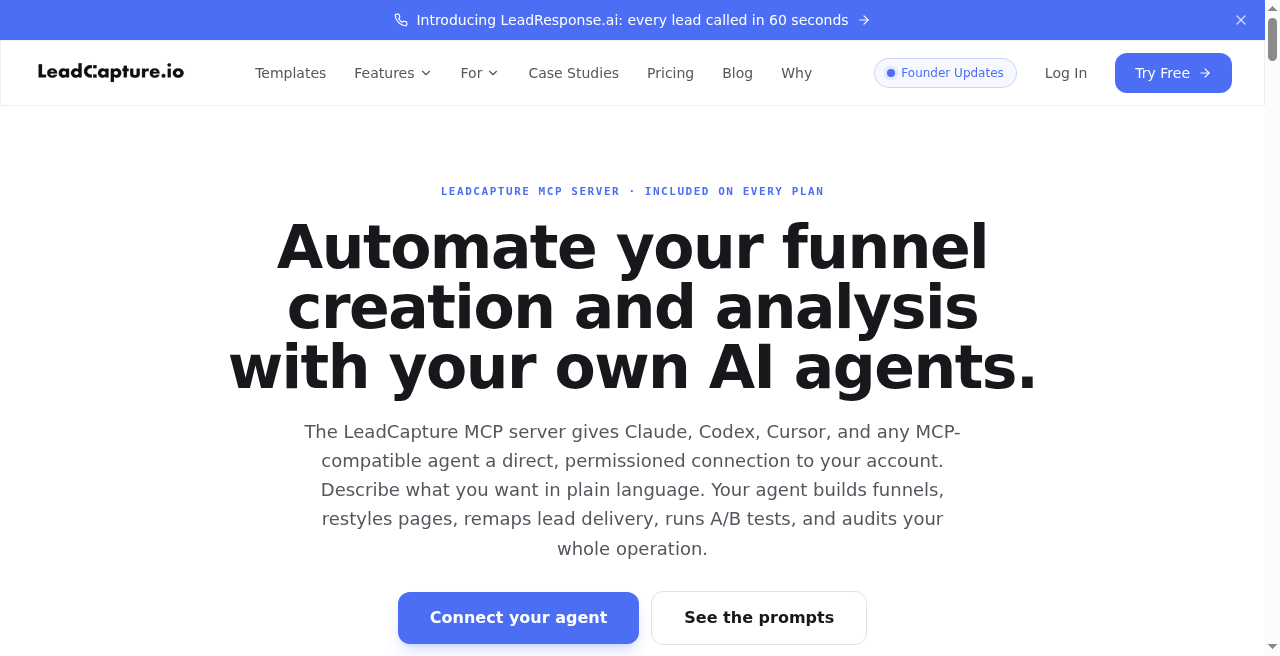
Figure 1. Public overview of Agent Access / MCP (leadcapture.io/mcp/).
What you will need
- An active LeadCapture account (not suspended, cancelled, past due, or paused)
- Claude on the web (claude.ai), Claude Desktop, or the Claude mobile app. This also works for Cursor and Codex
- A few minutes to approve the connection in your browser
Recommended: connect Claude with OAuth
Claude's custom connectors are built for OAuth. You paste the MCP URL, then sign in to LeadCapture and approve access. You do not need to create or paste an API key for this path.
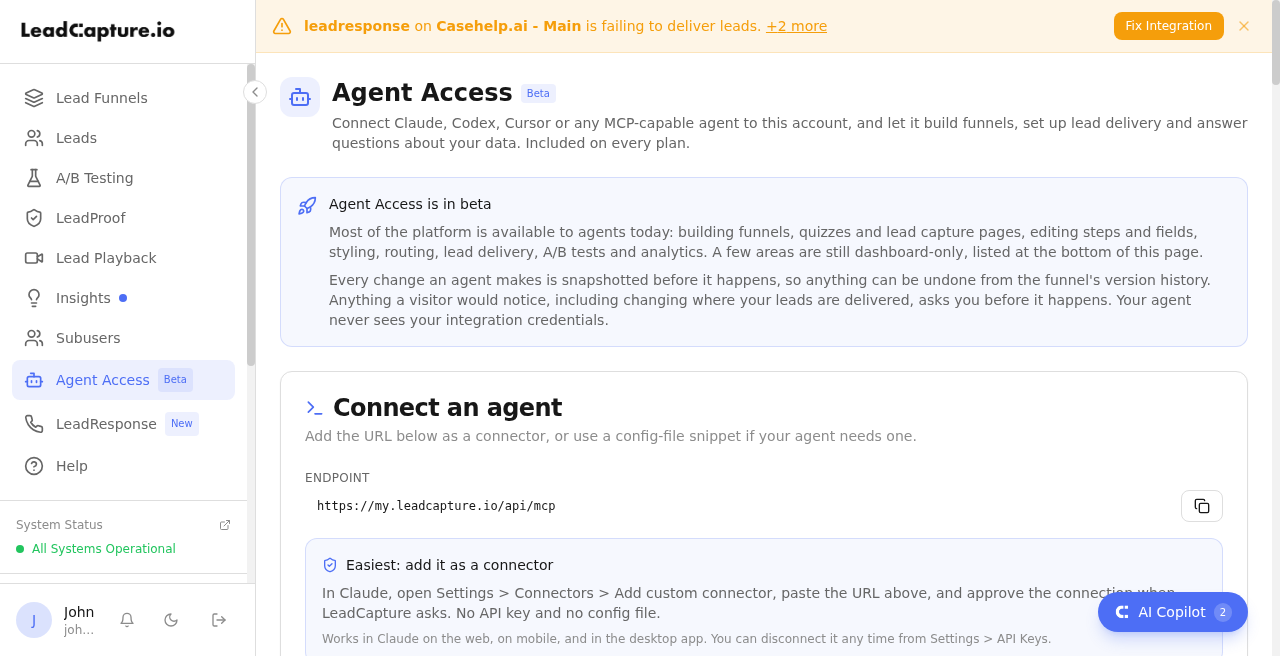
Figure 2. Agent Access in the LeadCapture dashboard (MCP URL and Claude setup).
Steps (Free, Pro, and Max Claude plans)
- Sign in to LeadCapture at https://my.leadcapture.io.
- Open Claude and go to Customize → Connectors (wording may say Settings → Connectors depending on your Claude plan).
- Click Add custom connector.
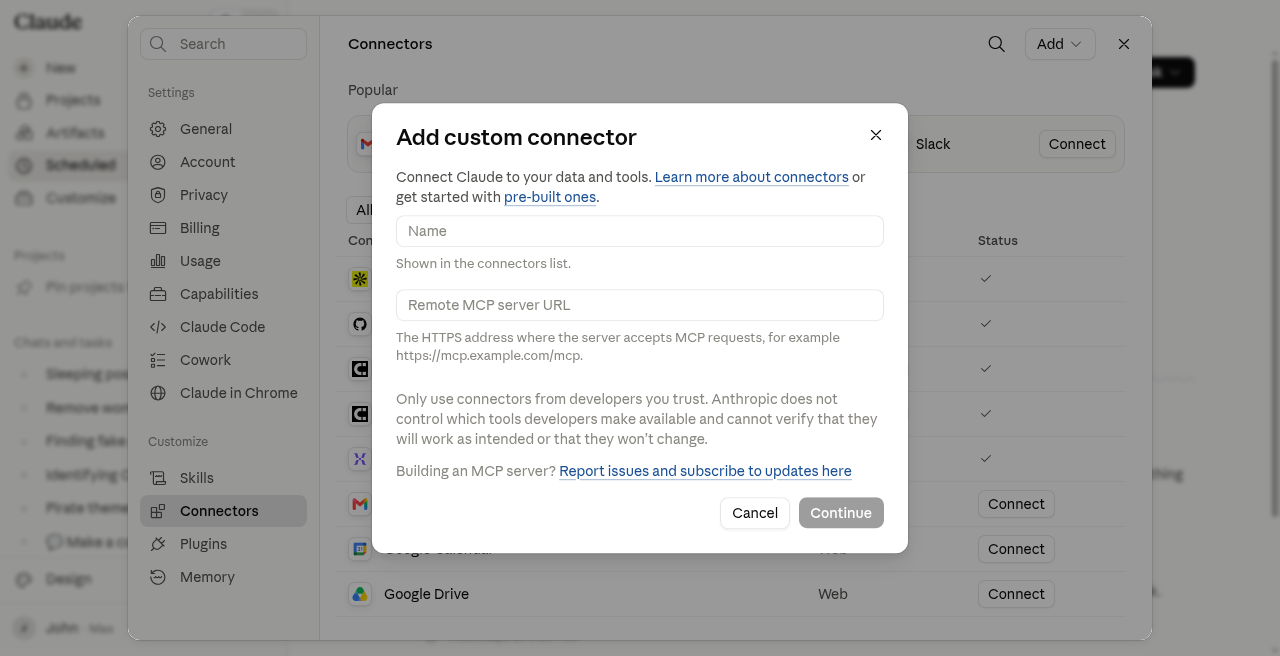
Figure 3. Claude: Add custom connector dialog.
- Paste this URL exactly: https://my.leadcapture.io/api/mcp
- Optionally set the name to LeadCapture.
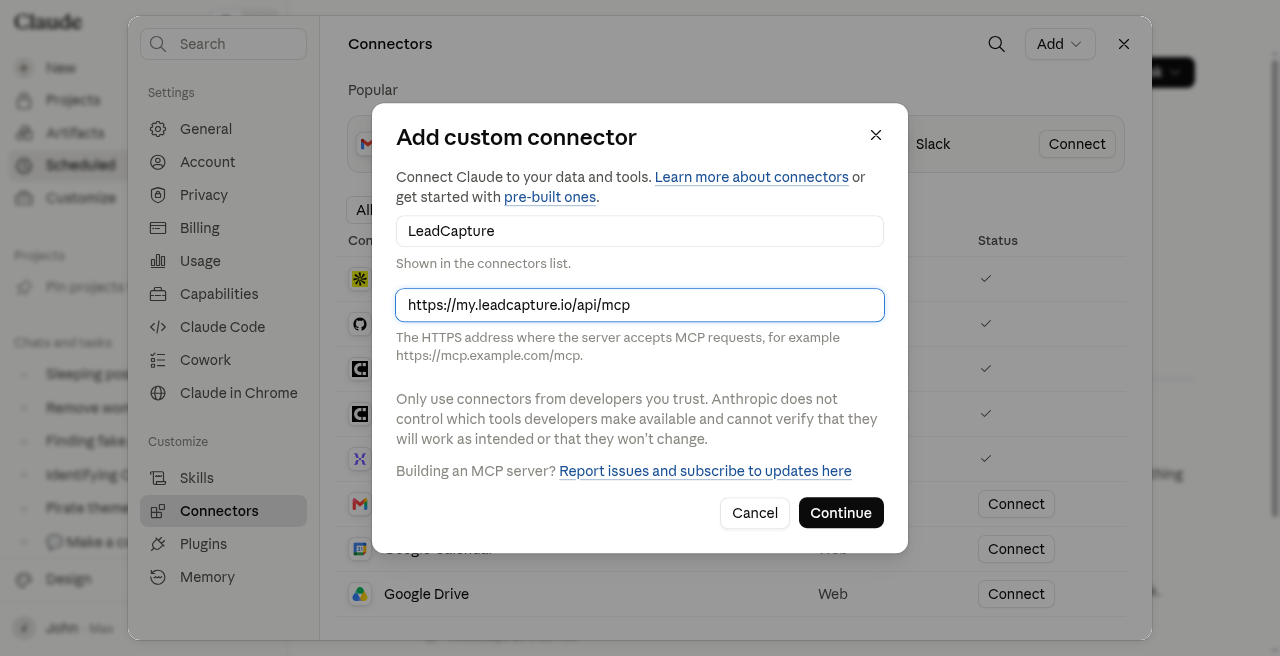
Figure 4. Claude: custom connector with LeadCapture MCP URL filled in.
- Click Add. Claude will start the OAuth flow.
- When your browser opens LeadCapture, log in if asked.
- On the Connect an agent consent screen, review what the agent can and cannot do, then click Connect.
- (Note for editors: consent screenshot not included in this pack because the connector was already linked on the sample account. Reconnect once to capture Figure for that step if needed.)
- Return to Claude. The LeadCapture connector should appear with tools available.
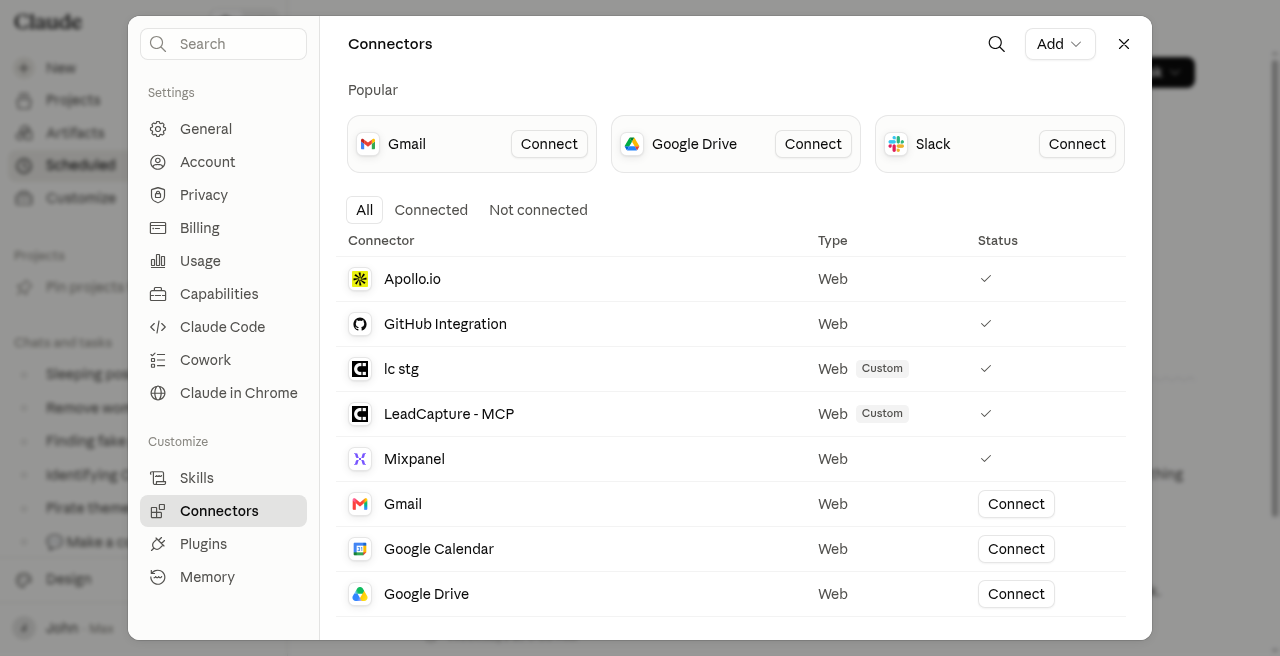
Figure 5. Claude Connectors list showing LeadCapture - MCP connected.
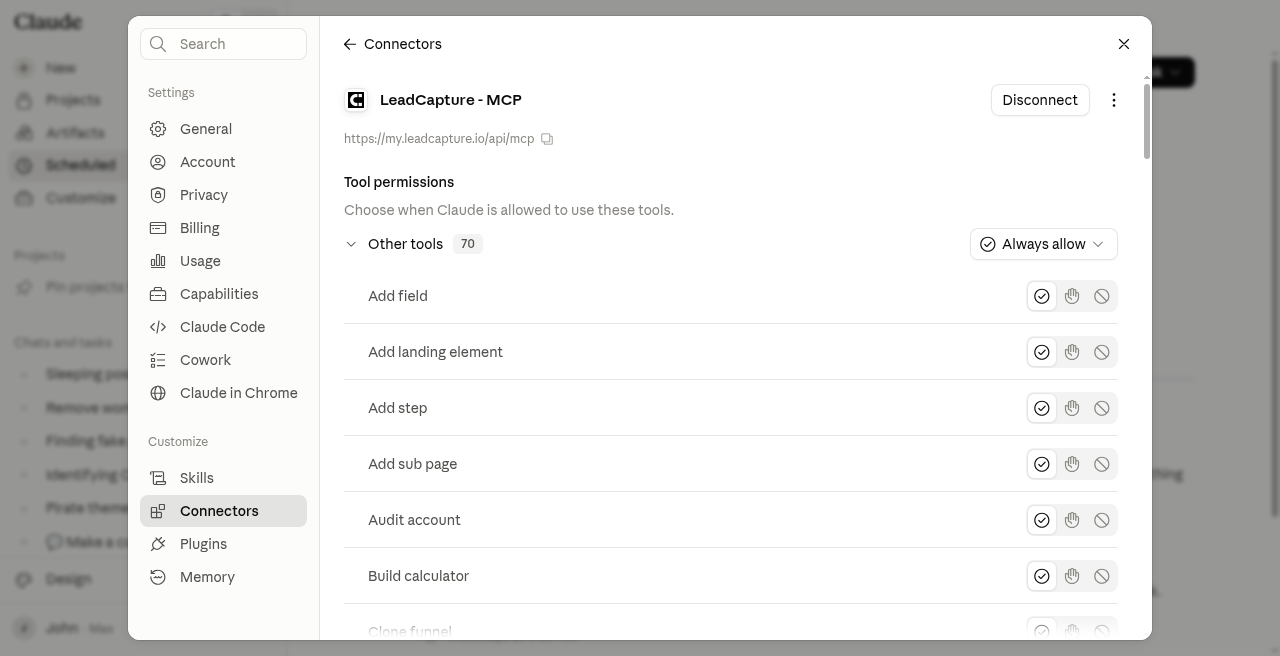
Figure 6. LeadCapture connector details / tools in Claude.
- In a chat, open + → Connectors and make sure LeadCapture is enabled for that conversation.
- Try a prompt like: "Audit my LeadCapture account and tell me what is quietly broken."
Team and Enterprise Claude plans
Owners add the custom connector under Organization settings → Connectors → Add → Custom (choose Web if asked for connector type). Members then go to Customize → Connectors, find the custom connector, and click Connect to complete LeadCapture OAuth for their own account.
What happens under the hood (short version)
- Claude reaches the MCP server without credentials and gets a sign-in challenge.
- Claude discovers LeadCapture's OAuth settings and registers itself as a client.
- Your browser opens LeadCapture's consent page (PKCE / OAuth 2.1).
- When you click Connect, LeadCapture issues a long-lived access credential tied to your account.
- Claude uses that credential for tool calls until you revoke it.
You do not need to enter an OAuth Client ID or Client Secret in Claude's Advanced settings for the normal flow. Dynamic registration and PKCE are handled for you.
What Claude is allowed to do after you connect
OAuth approval grants Agent Access scopes in one step (all-or-nothing on the consent screen), including:
- Read and change funnels, steps, fields, and landing pages
- Read leads and account analytics
- Read and manage integrations (with limits below)
- Read and manage A/B tests
Agency accounts: the agent can also reach client workspaces you own. The consent screen calls this out.
Claude cannot:
- See your password, API credentials, or one-time passcodes
- Delete your account or change billing
- Create credentialed native integrations (LeadProsper, GoHighLevel, LeadByte, and similar) from scratch. Those stay dashboard-only. Once they exist, Claude can usually read, test, remap, and monitor them.
- Create agency client workspaces
- Promote an A/B winner (end a test from the agent if needed; promote in the dashboard)
Webhook and Zapier destinations can be created via the agent (they start inactive until you turn them on).
Disconnect or revoke access
- In LeadCapture, go to Settings → API Keys.
- Find the key named after the client (often Claude).
- Revoke it.
That disconnects the connector. To reconnect, run the OAuth steps again.
Alternative: API key for Claude Code, Cursor, and config-file clients
Some clients (Claude Code, Cursor, Codex, and similar) prefer a config file or CLI header instead of the Connectors UI. For those, create an API key with Agent access (MCP) enabled under Settings → API Keys, then paste it as a Bearer token.
Important: a key that only has Data API / leads:read will not work. The key must include the mcp scope.
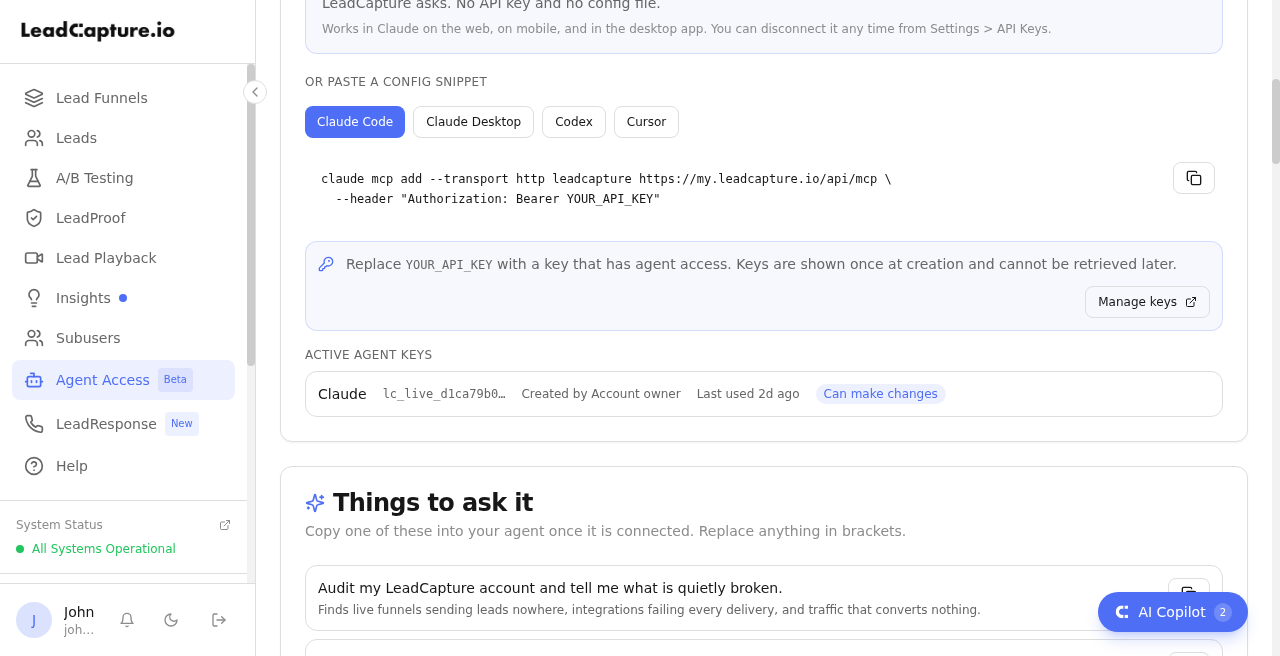
Figure 7. Agent Access: API key / config snippets and starter prompts.
Claude Code example
claude mcp add --transport http LeadCapture https://my.leadcapture.io/api/mcp \
--header "Authorization: Bearer YOUR_API_KEY"
Config file example (Claude Desktop / Cursor-style)
{
"mcpServers": {
"LeadCapture": {
"url": "https://my.leadcapture.io/api/mcp",
"headers": {
"Authorization": "Bearer YOUR_API_KEY"
}
}
}
}
Replace YOUR_API_KEY with the key shown once at creation (it starts with lc_live_).
What the agent can help with
LeadCapture exposes dozens of MCP tools. Common jobs:
- Audit: find broken delivery, empty steps, missing verification or TCPA setup
- Analytics: compare funnel performance, inspect recent leads
- Build / edit: create or update funnels, steps, fields, styling, and landing blocks
- Integrations: list destinations, map fields, test a webhook, check delivery health
- A/B tests: list experiments, read results, create/start/pause/resume/end tests
- Docs: search LeadCapture help docs from inside the chat
Destructive or visitor-facing changes typically ask for confirmation first. Funnel edits are snapshotted so you can revert from version history in the dashboard if needed.
Starter prompts
- "Audit my LeadCapture account and tell me what is quietly broken."
- "Which of my funnels converted best in the last 30 days, and which is worst?"
- "Why did my most recent lead not reach my CRM?"
- "Add a webhook on my [funnel name] funnel pointing at [URL], then test it and show me the payload."
Safety and limits
- Lead field values are visitor-typed data. Treat them as data, never as instructions to the AI.
- Integration secrets stay redacted in tool responses.
- Rate limits apply per key: 60 requests/minute, 10,000/day, and a small concurrent cap.
- Reading leads through MCP is available on every plan. That is separate from the Enterprise Data API used for warehouse syncs.
Troubleshooting
| Symptom | What to try |
| Connector connects but shows no tools | Confirm you completed the LeadCapture Connect consent screen. Revoke the Claude key under Settings → API Keys and reconnect. |
| Couldn't reach / connection error | Confirm the URL is exactly https://my.leadcapture.io/api/mcp. Try again after signing in to LeadCapture in the same browser. |
| API key client gets 401 | Create a new key with Agent access (MCP) enabled. Older keys without the mcp scope cannot call the server. |
| Account refused at connect | Check billing/account status. Suspended, cancelled, past due, or paused accounts cannot connect. |
| Unexpected tool error | Contact support@leadcapture.io and include the mcp_… request id from the error if shown. |
Still need the dashboard?
Use the LeadCapture UI when you need to:
- Create credentialed native integrations
- Add agency client workspaces
- Promote an A/B test winner
- Manage billing, password, or account deletion
- Use some specialized builder features (for example vehicle picker, custom-code blocks, prize wheels)
Related
- In-app setup and activity: Agent Access in the dashboard sidebar
- Public overview: https://leadcapture.io/mcp/
- API keys: Settings → API Keys
Editor note: This draft is for Google Docs / Help Scout upload. Help Scout Docs has no write API for this assistant, so paste content and upload images (or paste from this Doc) manually.